
Malware warning removal means cleaning the compromised site, verifying the fix, then requesting review from the platform that issued the flag. Google, Microsoft SmartScreen, and your hosting provider each run separate review processes, so the sequence is clean, validate, document, then request review. Google says a clean site is typically removed from its warning list within 24 hours.
Key facts
- Google Search Console Security Issues lists affected URLs and is the route for Google review requests
- Microsoft SmartScreen warnings are disputed from the warning page via More information, then Report that this site doesn’t contain threats
- Repeat warnings often come from browser notification permissions or unrotated credentials, not surviving files
- Take a forensic snapshot and return a 503 to crawlers before rebuilding from known-good files
Where ContentRemoval.com comes in. When the technical flag is cleared but warning screenshots, impersonation pages, or copied allegations remain in search, that is where ContentRemoval.com works. Usually the CTO, the communications lead, or outside counsel makes contact once the site is clean. A free 15-minute Exposure Scan maps what is removable across search and social, and the report is yours to keep. Get a Free, Confidential Exposure Scan or read how our content removal work is done.
The warning appears before anyone reaches your homepage. A client sends a screenshot of Chrome’s red interstitial. A partner sees Microsoft Edge SmartScreen block a campaign landing page. Your phone fills with customer messages while an advertising account pauses traffic and the sales team asks whether the company’s domain has been compromised.
That moment demands more than deleting suspicious files. Malware warning removal is a trust, permissions, and review problem, as well as a technical cleanup problem. Google, Microsoft, users, and your hosting provider now hold different pieces of the incident, and each operates through its own detection and review process. A rushed fix that leaves an unauthorized account, notification permission, redirect, or infected third-party component in place will produce another warning.
The next hour should create evidence, contain exposure, and establish one coordinated response. The sections below follow that path, from the first red screen through verification, review requests, hardening, and reputation protection.
When the Warning Hits and Why It Hurts
An executive usually discovers a site warning indirectly. A customer forwards a screenshot. A lawyer says a client portal won’t load. A colleague visiting from another network reports that the browser calls the site dangerous, while the office connection still displays the homepage normally. That inconsistency creates dangerous reassurance. The site may be intermittently flagged, or different security systems may be applying different classifications.
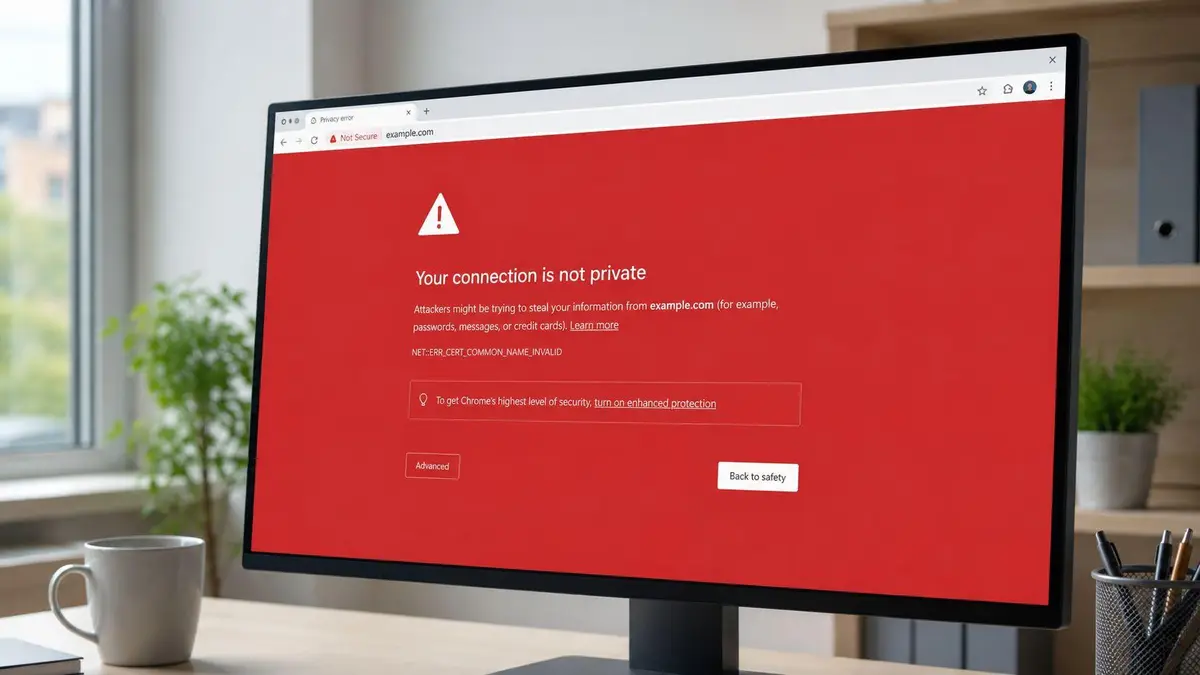
The commercial damage begins before a forensic report exists. Prospects abandon forms, partners question referral links, and employees may stop using internal tools connected to the domain. A warning also changes the story that search engines and browsers tell about your organization. Visitors don’t see a nuanced explanation of an injected script or compromised credential. They see a blocked destination.
Executive rule: Treat the warning as a public trust event from the first screenshot, not as an internal IT ticket.
Google Safe Browsing has warned users about potentially malicious sites since 2006, and Google allows owners of cleaned sites to request a malware review through Search Console. Google says a clean site is typically removed from its warning list within 24 hours, while it periodically rechecks listed sites for reinfection through its Safe Browsing service. That means cleanup and review belong in the same incident plan, but they aren’t the same action.
Four actors now matter. Users decide whether to proceed or leave. Google evaluates search and Safe Browsing signals. Microsoft may apply SmartScreen protection in Edge and Windows. The host controls infrastructure access, suspension decisions, backups, and sometimes re-imaging. A credible response gives each party the evidence it needs instead of sending the same generic explanation everywhere.
The mistake is to define success as “the page loads again.” Success means the suspicious condition is removed, credentials are controlled, affected URLs are identified, scanners remain clear, and reviewers can verify the correction. That standard protects revenue now and reduces the chance that the warning becomes a durable reputation issue.
Confirming the Flag and Triaging the Damage
Start with evidence, not deletion. Open the affected URL from a clean mobile connection, a separate office or residential network, and a controlled browser session without normal extensions. If the warning appears only on one workstation, inspect the local browser, proxy, DNS behavior, and security software before declaring a server compromise. If it appears across independent connections, preserve the warning and move into incident triage.
Identify the warning surface
Classify the event before choosing a reviewer. A browser interstitial usually belongs to a browser or platform protection workflow. A search result label such as “This site may be hacked” points toward search review. A hosting suspension requires an infrastructure conversation, often with different evidence and access restrictions.
Record the exact URL, timestamp, browser, device, network, warning language, and screenshot. Preserve relevant server and access logs before routine cleanup overwrites them. The initial record should also identify whether the warning affects the homepage, a subdirectory, a download, a login route, or a page that embeds third-party content.
Use the site’s Google Search Console Security Issues report to inventory affected URLs. Check Bing Webmaster Tools for blocked or unsafe pages, and inspect whether mailboxes, administration panels, or customer portals have been suspended. Don’t assume that the visible homepage is the only affected asset.
Create one triage memo
A one-page memo should state the flag type, affected URLs, suspected entry point, systems involved, containment action, and reviewers to contact. Include who has authority to approve downtime, credential resets, customer communications, and legal preservation. This prevents the engineering team, communications team, and outside counsel from working from conflicting timelines.
| Flag Type | Reviewer / Surface | Where to File | Typical SLA |
|---|---|---|---|
| Browser protection warning | Google Safe Browsing, Microsoft SmartScreen, or another browser security surface | The relevant platform review or dispute channel | Depends on platform review queue |
| Search security label | Google Search Console or Bing Webmaster Tools | Security Issues or webmaster review workflow | Depends on evidence and reviewer workload |
| Hosting suspension | Hosting provider abuse or security team | Provider ticket and escalation channel | Depends on infrastructure impact and root cause |
If the event involves exposed customer information or a broader incident, keep the technical response aligned with reputation management after a data breach. The public warning may be only one visible symptom of a larger disclosure or access problem.
Cleaning the Site, Server, and Devices
Cleanup must proceed from the server outward. If you begin by resetting a browser while an attacker still controls the CMS, the next page load can restore the problem. If you delete files before preserving the infected state, you may lose the evidence needed to identify the entry point or explain the incident to a host, insurer, regulator, or court.
Isolate and preserve the server
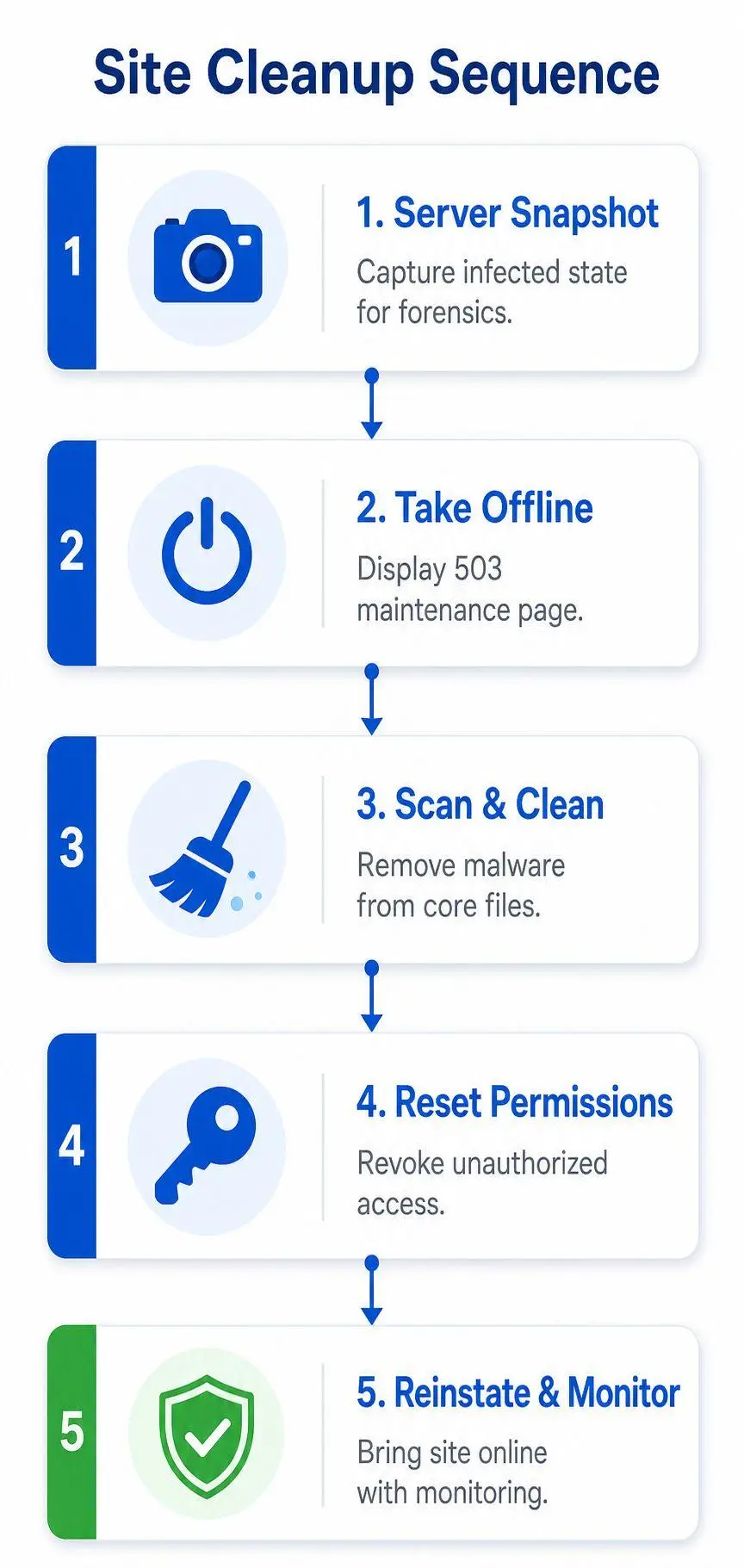
Take a snapshot of the affected environment for forensic review, then place the site behind a maintenance response that returns 503 to crawlers while the team works from a clean staging copy. Replace CMS core files with known-good versions from the official repository. Compare every plugin, theme, and extension with its upstream version, and search recursively for webshells, obfuscated payloads, and recently modified PHP, ASP, or JavaScript files.
Review scheduled jobs, deployment hooks, administrator accounts, and unexpected application files. A suspicious file isn’t always the original entry point. An attacker may have created persistence through a stolen hosting credential, a vulnerable extension, or a second administrator account.
Rotate every credential that touched the environment. That includes SSH keys, FTP credentials, database passwords, CMS accounts, API tokens, hosting control-panel access, and any automation secret used by deployment systems. Revoke first, then issue replacement credentials from a clean device. File permissions also require inspection. World-writable content is suspect, and ownership should be restricted so the web process can’t modify more than it needs.
Clean browsers and Windows devices
For a Microsoft-related scareware event, run a full Windows Defender scan and review Protection History. Microsoft says Protection History retains events for only two weeks, then removes them from the list. It distinguishes between threats that were blocked, quarantined, or removed, and Microsoft explains that Defender can record a threat as blocked and remove it automatically, or quarantine it with Remove available as a user action in its Windows Security documentation.
Remove suspicious extensions, potentially unwanted programs, and unfamiliar browser policies. Reset Chrome and Edge to their defaults when the profile has been altered, then clear browser data for all time. Flush local DNS, rebuild any local site copy from a verified backup, and inspect whether the warning returns after synchronization or restart.
Browser scareware requires a different first move from a server infection. Microsoft and university IT guidance advises force-closing a browser when a fake alert prevents normal exit, avoiding every button inside the warning, clearing browser data, removing suspicious extensions and site notification permissions, and running a full security scan through the Microsoft guidance for persistent fake virus alerts.
Do not click the warning’s “clean,” “scan,” or support buttons. A scareware page wants to control your next action, often through redirects, downloads, or notification consent.
Don’t relaunch the site after a superficial file deletion. Rebuild from known-good components, confirm credentials and permissions are controlled, and complete verification before removing the maintenance response.
The cleanup sequence is only complete when the server, browser, endpoint, and account layers agree. A clean homepage doesn’t prove that a hidden download route, scheduled task, or administrator account has been removed.
Verifying the Cleanup Before Requesting Reviews
A review request submitted before verification creates a credibility problem. If Google, Microsoft, or a hosting provider rescans the property and finds a surviving redirect or malicious script, the reviewer sees an unresolved incident rather than a completed remediation. The correct sequence is clean, validate, document, then request review.
Test every affected surface
Rescan every URL identified during triage through Google Safe Browsing diagnostics and your chosen site scanner. Run server-side antivirus again after file replacement and credential rotation. Test the site from clean networks and separate browser profiles, including the routes that triggered the warning rather than only the homepage.
Review Microsoft Defender Protection History for new detections after cleanup. A historical entry can remain relevant, but a new detection after remediation signals that the device, browser, or downloaded site copy still needs attention. Check Chrome and Edge extensions, notification permissions, proxy settings, and browser policies for unauthorized changes.
Validate access and integrity
Rotate CMS, FTP, SSH, database, hosting, DNS, and API credentials touched during the incident. Confirm that every administrator is known, every scheduled task belongs to your organization, and every deployment hook is expected. Compare files against a known-good baseline, then inspect .htaccess, web.config, and DNS records for injected redirects or unexpected destinations.
Preserve a timeline containing the first warning, affected URLs, containment time, file changes, credential resets, scan results, and review submissions. Attach screenshots and scanner output. Reviewers shouldn’t have to reconstruct the incident from scattered tickets.
Microsoft’s SmartScreen documentation explains that a warning can be disputed from the warning page by selecting More information and then Report that this site doesn’t contain threats. That action sends the case into Microsoft’s feedback process. It isn’t a substitute for cleanup, and it shouldn’t be used until the evidence supports the assertion.
Requesting Reviews From Google, Microsoft, and Hosts
Submit to the platform that issued the flag. A Google security review won’t resolve an infrastructure suspension, and a Microsoft SmartScreen dispute won’t remove a search label caused by a separate compromised URL. Treat each submission as an evidence package, not a plea for a manual exception.
For Google, use the Security Issues workflow in Search Console. Identify the cleaned URLs, explain the suspected cause, describe the containment and remediation work, and include timestamps and supporting evidence. Google Safe Browsing is broader than malware alone. Chrome’s Android documentation says its warnings can cover malware, abusive sites and extensions, phishing, malicious and intrusive ads, and social engineering attacks, so use the classification that matches the observed behavior.
For Microsoft Edge, use the SmartScreen dispute path from the warning page or submit through Microsoft’s security reporting channels. Include the exact URL, screenshots, reproduction steps, business ownership, cleanup timeline, and scanner results. Microsoft provides a specific path through More information and Report that this site doesn’t contain threats, rather than an instant local dismissal.
The hosting provider needs a separate escalation. State whether the site is cleaned, whether the root cause is understood, whether credentials were rotated, and whether a server re-image is required. If the provider controls the block, ask what evidence it needs before restoring service and whether a preserved snapshot must be retained.
| Platform | Submission Portal | Evidence Required | Typical Response |
|---|---|---|---|
| Search Console Security Issues and Safe Browsing review workflow | Cleaned URLs, remediation narrative, timestamps, scan evidence | Google says a clean site is typically removed from its warning list within 24 hours | |
| Microsoft | SmartScreen warning feedback and Microsoft security reporting | Screenshot, URL, reproduction steps, ownership and cleanup details | Timing varies by Microsoft review process |
| Hosting provider | Security, abuse, or priority support ticket | Root-cause findings, containment actions, credential rotation, re-image request if needed | Depends on infrastructure review and provider policy |
If Bing displays the warning or suppresses the listing, use Bing Webmaster Tools support and review options as a separate path. Don’t describe a third-party page as your owned property. Identify whether the issue is your domain, an impersonating domain, a hosted asset, or a page that merely uses your brand.
Why Warnings Keep Coming Back
Repeated warnings often indicate a permissions problem rather than an incomplete file cleanup. A compromised site can inject scripts, but a user can also grant a malicious site permission to send notifications. That permission may continue producing alarming messages after the original page disappears, which makes the incident look like a persistent infection when the active mechanism is a browser or device consent.
Google’s platform-level reporting illustrates the scale of notification abuse. Google reportedly blocked more than 7 billion abusive Android notifications per day in Q1 2026, according to reporting on Google’s Chrome notification protections. The figure matters because it shows why “remove the warning” is often the wrong operational question. The better question is, which account, browser, site, or application was allowed to create it?
The permission loop
A visitor lands on a compromised or deceptive page. The page presents a consent prompt, sometimes disguised as a verification step, then uses the granted notification channel to deliver phishing links, fake scans, payment demands, or urgent account messages. The message may resemble a browser or operating-system warning closely enough to persuade the recipient to click.
The visible page can be cleaned while the permission remains active. A user can also synchronize that setting across devices, allowing the same sender to reappear in another browser profile. Android and Chromium-based browsers therefore become a central battleground because they combine high-volume notification surfaces with permissions that users may approve during a rushed interaction.
Remove the source, not just the symptom
Inspect site notification permissions, browser extensions, installed applications, account sessions, and device security settings. On Android, review Play Protect and Security Checkup alongside browser data and notification permissions. On desktop systems, remove unknown notification senders and reset affected browser profiles when policy or synchronization restores them.
A closed warning isn’t a cleared incident if the sender still has permission to notify the user.
Prevention should restrict who can send notifications, who can install extensions, which accounts can administer the site, and which devices can access sensitive sessions. A successful malware warning removal therefore ends with permission review, not with the browser window closing.
Hardening, Monitoring, and the Reputation Layer
A malware warning exposes the gap between technical security and executive risk. Your security team needs clean files and reliable evidence. You also need stable service, controlled communications, and confidence that the brand will not appear beside another warning next week. Treat the response as an operating posture that connects prevention, detection, remediation, and reputation.
Start with least-privilege administration. Require multifactor authentication for CMS, hosting, DNS, and identity-provider access. Separate routine browsing from privileged administration, restrict extension installation, patch the CMS and its extensions, and configure a web application firewall for the application. File-integrity monitoring and automated malware scans should alert a separate channel, so a compromised administrator account cannot silence every signal.
Monitor the trust surfaces
Give the security and communications leads access to Google Search Console Security Issues. Add Safe Browsing diagnostic checks, uptime alerts, DNS change alerts, certificate monitoring, and external checks for critical landing pages. Schedule independent security testing at a frequency suited to the risk, then review the findings with someone authorized to approve remediation.
A reputation monitoring program should track search results, partner references, social posts, and warning screenshots. Technical scanners can show a clean URL while customers, journalists, or affiliates continue sharing an old image. Monitoring exposes that gap and gives communications a basis for accurate, restrained corrections.
Preserve the legal and public record
Keep forensic snapshots, logs, review submissions, scanner results, and credential-rotation records under controlled access. If visitor information may have been exposed, involve counsel early. Breach-notification duties depend on the facts, the data involved, and the jurisdictions affected, so a platform warning should not determine the legal analysis by itself.
Customer communications should explain what was observed, what was contained, what remains under review, and where users can obtain official support. Partners and journalists may have seen the warning before the site was cleared. Factual outreach can prevent a temporary technical flag from becoming an enduring allegation.
If warning screenshots, impersonation pages, or related harmful material remain visible after the technical issue is resolved, address the reputation layer separately. ContentRemoval.com can help assess content removal, search de-indexing, source remediation, and monitoring needs. A confidential assessment should identify which assets remain public, who controls them, and which actions can reduce their impact while the technical controls stay in place.
Frequently asked questions
How long does it take Google to remove a malware warning after cleanup?
Google says a clean site is typically removed from its warning list within 24 hours of a successful review request through Search Console. That clock only starts once the site is actually clean, and Google periodically rechecks listed sites for reinfection, so a rushed fix that leaves a redirect in place will bring the warning back.
Why does the malware warning keep returning after I cleaned the site?
Repeated warnings usually point to a permissions problem rather than leftover files. A stolen hosting credential, a second administrator account, a vulnerable plugin, or a site notification permission a user granted can restore the problem after cleanup. Rotate every credential and review notification senders, extensions, and admin accounts before requesting review again.
Should I click the buttons on a browser malware warning to fix it?
No. A scareware page wants to control your next action through redirects, downloads, or notification consent. Force-close the browser, clear browser data, remove suspicious extensions and notification permissions, then run a full security scan before doing anything else.