
Clearing Google cache means two different things. Clearing your browser cache fixes stale pages on your device and changes nothing in search results. Google retired its public cached-page feature in 2024, so fixing a stale search result means using Search Console’s Clear cache URL or Temporary remove URL tools, or the Remove Outdated Content tool for third-party pages.
Key facts
- Google phased out its public cached-page link in early 2024 and fully retired it by September 2024.
- Search Console offers Temporary remove URL and Clear cache URL as separate tools with different outcomes.
- Outdated content requests need at least one word that was on the old page but is now gone.
- The noarchive tag no longer controls cached links, while nosnippet still limits what Google displays.
Where ContentRemoval.com comes in. When a stale Google snippet keeps surfacing old wording about a person or company, ContentRemoval.com works the source page, the index and the recurrence risk together rather than filing a single request. Individuals, their assistants and their agencies usually reach out after a Search Console request was denied. A free, confidential 15-minute Exposure Scan maps what is removable and the report is yours to keep. Get a Free, Confidential Exposure Scan or read how our search result removal work is done.
You’re probably here because a page about you, your company, or your client still surfaces in Google with old wording attached to it. The live page may already be fixed, deleted, or replaced, but the search result still carries the stale version that matters most to outside eyes.
That problem used to have a simple answer. It doesn’t anymore. Google retired its public cached-page feature in 2024, which means most articles on how to clear Google cache are still explaining a workflow that no longer exists in the same form. The work now is separate local browser cleanup from Google Search cleanup, then use the right removal path for the specific damage you’re trying to stop.
Why Most Cache Removal Guides Are Now Outdated
The first mistake is assuming Google still shows a visible cached page you can click and delete. It mostly doesn’t. Google’s cached-page feature was phased out in early 2024 and fully retired by September 2024, and coverage at the time noted that the visible Cached link disappeared from search results while the cache: operator also stopped working (The Verge’s report on Google’s cache retirement).
That matters because a lot of search results for how to clear Google cache still describe the old interface as if it were current. It isn’t. If you’re dealing with an embarrassing snippet, a deleted page that still appears, or an outdated description on a live URL, you’re not trying to delete a public cache page anymore. You’re trying to control what Google has indexed, what it shows in the snippet, or whether it keeps showing the URL at all.
Browser cache and Google Search cache are not the same problem
Your own browser cache lives on your device. Google’s stored copy, snippet, and index live on Google’s side. Clearing Chrome’s cache can fix a page that loads incorrectly on your laptop, but it won’t change what someone else sees in search.
Practical rule: if the problem is only on your screen, clear your browser cache. If the problem is in Google results, work the page and the index.
That distinction sounds basic, but it’s where people waste time. Google’s search liaison confirmed the public cache was retired, and later coverage noted the cache: operator no longer worked, so the old advice no longer solves the reputational problem most users have (Engadget’s coverage of Google’s cached web page feature removal, 9to5Google on the removed Cached link).
The second mistake is using browser cleanup language when the issue is really indexed content. Google’s own help for deleting browsing data in Chrome or Android is about local device history and temporary files, not deindexing or snippet cleanup (Google account help on clearing browsing data). If you need reputational cleanup, that guide sends you to the wrong place.
Clearing Your Browser Cache in Chrome and Other Browsers
Clearing browser cache fixes device-level display problems. It does not change Google Search results. If Chrome is holding onto old files, open the menu in the upper right, go to Delete browsing data, select Cached images and files, choose the time range you want to clear, then fully close the browser, reopen it, and load the page again.
The path is simple, and the Census Bureau’s Chrome guidance follows the same sequence, menu, delete browsing data, check cached images and files, then delete data (Census guidance for clearing Chrome cache). Webex’s Chrome help makes the same point, clearing cached images and files can fix loading or login issues when a site is not updating correctly on your device (Webex help on clearing Chrome cache and cookies).
What this removes
Chrome’s cache stores temporary files, images, and page elements so sites load faster. Clearing it forces the browser to fetch a fresh copy from the server. It does not remove Google’s indexed description of a page, and it does not remove a result from search.
Use browser cache clearing in these cases.
- Your own screen is stale: you changed a page, but your browser keeps showing the old layout or old text.
- A site won’t load correctly: login, checkout, or interactive elements are broken because the browser is holding old assets.
- You need to verify a fix: after a page update, you want to confirm you’re seeing the live version, not a stored local copy.
If Google still shows the wrong title, the wrong snippet, or a page that should no longer appear, browser cleanup will not change it. That calls for Search Console or the Remove Outdated Content workflow.
Using Search Console to Remove Cached Pages and Snippets
Search Console gives you two separate tools for this: Temporary remove URL and Clear cache URL. Use them for different outcomes, and do not confuse them. Temporary removal hides the URL from search results for a period of time and clears the cached copy. Cache removal clears the cached page and removes the description snippet until Google crawls the page again (Google Search Console removals report update).
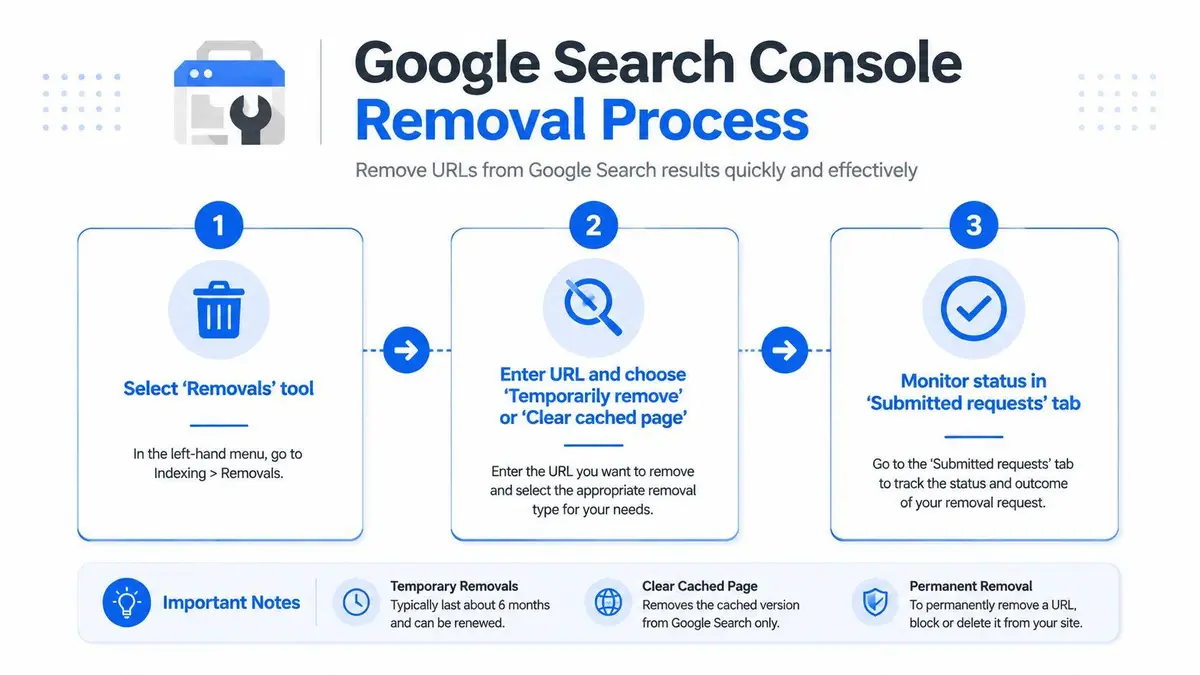
Choose the tool based on the result you need. If the URL should stop appearing in search for a while, use the temporary removal. If the page can stay live but the cached copy and snippet need to disappear, use the cache-clearing path. Google has long treated cache removal and index removal as separate workflows, and that separation still matters (Google’s URL removal explanation).
What Google requires before approving a request
Google does not approve these requests blindly. Its removal guidance says the request should include at least one word that appeared on the page before but no longer appears, because that helps confirm the live page changed and the stored version is stale (Google’s removal explanation). If the URL is unchanged and still crawlable, Google can wait for recrawl or reject the request.
Update or remove the source page first, then file the request in Search Console. If the live page still says the same thing, you are asking Google to treat the stale version as outdated while the source remains intact.
For a practical executive cleanup playbook, see this guide to the refresh and outdated content tool.
Search Console is strongest when you control the domain. It is far less useful when the content belongs to someone else, and it does nothing lasting if the underlying page stays live and eligible for recrawl.
Removing Outdated Content from Google Search Results
A deleted page, or a page that has been materially rewritten, can still surface in Google with stale wording. That is the point where the Remove Outdated Content tool matters. It addresses old snippets and vanished pages, which is the core problem behind most searches for how to clear Google cache now.
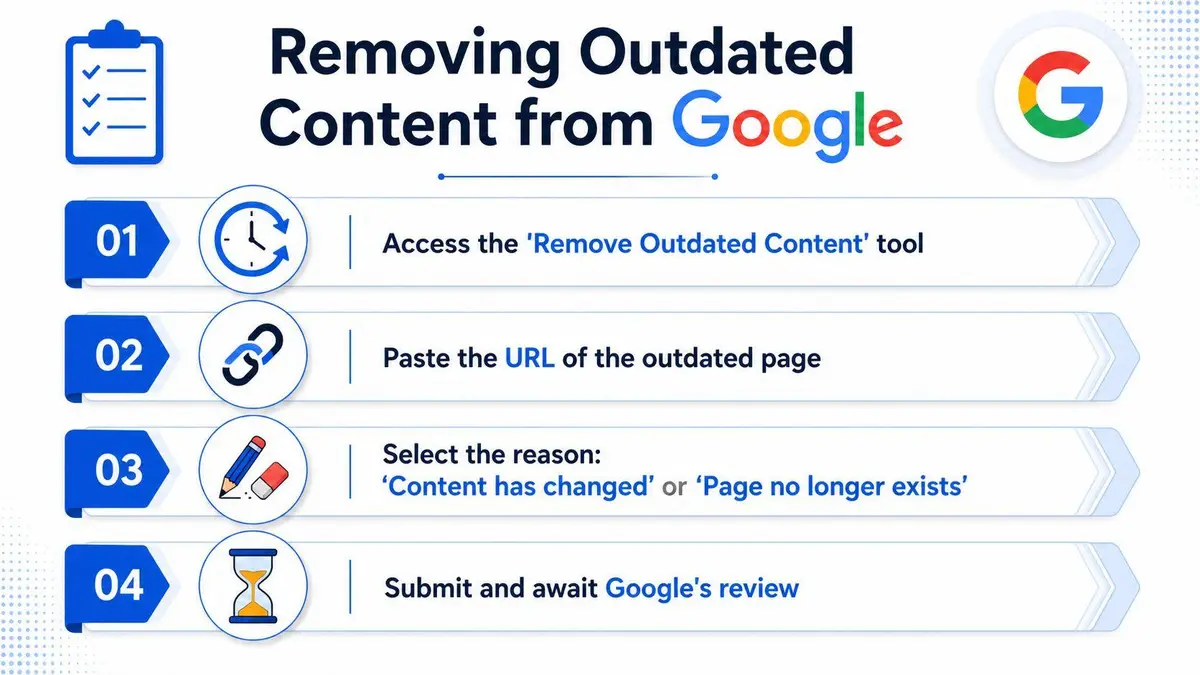
Google requires proof that the live page no longer matches the search result. The request must identify at least one word that appeared on the old page but no longer appears on the current page. That check helps confirm the result is stale. If the live page still contains the same material, Google has no reason to treat the snippet as outdated.
Where this works best
Use this route for deleted news stories, removed social posts that still show in search, and company pages that were rewritten but still display old wording in the snippet. It also fits reputational cleanup when a corrected page keeps showing a damaging fragment.
For a controlled process across multiple URLs, or when the page belongs to a third party, use ContentRemoval.com’s outdated-content removal service. That is a different task from browser troubleshooting. The goal is to change what Google keeps showing after the source has already changed.
A removal request is not a permanent fix unless the live page stays changed or disappears. If Google recrawls and finds the same older material, the result can return. Stale-content cleanup only works when the source page and the search result stay aligned.
Preventing Future Caching with Meta Tags and Indexing Controls
Reactive cleanup is weaker than prevention. If you control the page, stop the bad version from being stored in the first place. Historically, Google documented the noarchive meta tag as a way to prevent cached versions, and nosnippet to suppress descriptions in search results (Google’s URL removals documentation).
Google later said the cached-link feature no longer exists and that noarchive is no longer used by Google Search to control whether a cached link is shown. That change is why old blog posts mislead readers. The current practical focus is less about hiding a public cache link and more about controlling what gets indexed, what gets shown, and what should be eligible for future recrawls.
Choose the control that matches the risk
nosnippet is the cleaner reputational tool when you want to reduce search-result exposure without pretending the page never existed. It limits the description Google can display. robots.txt operates at the crawl level, which means it can reduce access to the page, but it’s not a magic erase button and it comes with visibility trade-offs.
Best practice: use the lightest restriction that still protects the page. Over-blocking can solve one problem and create another.
For high-sensitivity pages, the decision should be deliberate, not reactive. If the material is likely to resurface, you want the source page, the snippet behavior, and the crawl rules aligned from the start. That’s where professional reputation management can do more than a one-off edit, because the primary job is preventing old content from being reintroduced after cleanup.
When to Escalate to Professional Content Removal Services
DIY works when you own the page, the issue is isolated, and Google cooperates. It breaks down when you’re dealing with third-party content, repeated recrawls, cross-platform harm, or a timeline that can’t tolerate waiting for the temporary removal window to expire. Those are the situations where a manual request is just the first move, not the whole strategy.
If Google denies the request, the reasons usually point to a source problem rather than a tooling problem. The live page still matches the indexed version, the request was too broad, or the content is still reachable somewhere else. For a more detailed response framework, see what to do if Google denies a content removal request.
What a professional firm can actually do
A serious removal team can pursue site-owner takedowns, coordinate legal requests, manage de-indexing, and monitor for reuploads after the first cleanup. That matters when the same problem keeps appearing under different URLs or when reputational harm is tied to more than Google Search alone.
ContentRemoval.com sits in that category. It handles de-indexing and source removal across search engines and content types, which is relevant when a cached snippet is only one part of the exposure. The value is not a prettier report, it is controlling the source, the index, and the recurrence risk together.
Use outside help when the issue has legal exposure, public pressure, or repeated failures in Search Console. At that point, the question is no longer how to clear Google cache. The question is how to make the damaging result stop resurfacing.
If you need the outdated result handled with discretion, speed, and a strategy built for reputational risk, start with ContentRemoval.com. Their team works on de-indexing, source removal, and ongoing monitoring so stale Google results don’t keep reopening the same problem.
Frequently asked questions
Does clearing my Chrome cache change what Google shows?
No. Chrome’s cache is stored on your device and only affects what you see. Google’s stored copy, snippet and index live on Google’s side, so a search result will not change until the page itself is updated and Google processes a removal request or recrawls it.
Why did Google reject my outdated content request?
Usually because the live page still matches what Google has indexed. The request must show that at least one word from the old version no longer appears. If the source page has not changed, or the content is still reachable elsewhere, Google has no reason to treat the result as stale.
Can I stop Google from caching a page in the future?
Google no longer uses the noarchive tag to control cached links, since that feature is gone. The practical tools now are nosnippet, which limits the description Google can display, and crawl controls like robots.txt, which reduce access but come with visibility trade-offs.