
To delete search history on iPad, go to Settings, Apps, Safari, then Clear History and Website Data, or remove individual entries inside Safari using time ranges from Last Hour to All Time. Chrome and other browsers must be cleared separately. Searches made while signed in to Google also live in your Google account’s My Activity and need deleting there.
Key facts
- Safari’s full clearing path is Settings, Apps, Safari, Clear History and Website Data.
- Selective clearing offers Last Hour, Today, Today and Yesterday and All Time ranges.
- A greyed-out clear button usually means Screen Time Content and Privacy Restrictions are on.
- Safari profiles and Private Browsing separate sensitive research from everyday activity.
Where ContentRemoval.com comes in. Clearing an iPad handles the trail on one device. The larger exposure for an executive or public figure sits outside it, in indexed search results, data broker listings, old posts and leaked documents that shape what strangers find first. ContentRemoval.com addresses that public-facing footprint through source removal, de-indexing and monitoring. Principals, family offices and their assistants usually make contact. A free 15-minute Exposure Scan maps what is removable, and the report is yours to keep. Get a Free, Confidential Exposure Scan or read how our content removal work is done.
Your iPad can expose more than browsing habits. It can reveal deal research, legal concerns, medical questions, family matters, travel patterns, and names you never intended anyone else to see. For a high-profile person, that trail matters long after the search itself is over.
The usual advice is too shallow. Tap a button, clear a list, move on. That approach fails when searches remain tied to synced services, saved website data, account activity, or profile-specific browser records. If you’re trying to delete search history on iPad because a device is shared, inspected, lost, or no longer under your exclusive control, you need a tighter process.
Securing Your Digital Footprint on iPad
A single search on an iPad can create a record in more places than the screen in front of you. On a device used for board travel, legal review, investor research, medical scheduling, or family logistics, that record can expose intent, timing, and associations you never meant to preserve.
Treat history deletion as containment. That means identifying every place the search may persist, clearing the obvious record, and closing the account or sync paths that can restore it later. For example, deleting a search for a competitor’s financials from Safari history does not remove it from your Google Account activity, where it can still be viewed from another signed-in device.
High-profile clients get burned by one predictable mistake. They erase the browser trail, then assume the matter is closed. It is not. iCloud sync, Google activity, website data, browser suggestions, and shared-device access can all keep fragments alive after the visible history is gone.
Use a stricter rule. If the search touched legal exposure, reputation risk, acquisition planning, health matters, security concerns, or family privacy, inspect every connected layer, not just Safari.
Apple’s current iPad controls allow selective removal or broader clearing, which is useful on a shared or managed device where a full wipe may create new problems. The risk is false confidence. A cleaned Safari list can still leave enough residue elsewhere to reveal what you searched, when you searched it, and which account was involved.
If the issue affects your name, business interests, or public profile beyond this one device, use a digital footprint cleanup strategy that covers synced accounts, indexed traces, and reputation exposure. iPad cleanup is immediate damage control. Footprint management protects the larger record.
Executing Precise History Deletion in iPad Browsers
A board flight lands, your iPad changes hands for ten seconds at security, and Safari still shows the trail of a sensitive search. That is how private research turns into reputational exposure. On an iPad, deletion needs to be deliberate, narrow when possible, and verified across every browser that touched the query.
Start with Safari. It is the browser most tightly tied to iPad system controls, and it is often the place people leave an obvious trail.
Effective Safari Deletion
Use the system path Apple provides for full Safari clearing:
Safari bulk deletion path
Settings > Apps > Safari > Clear History and Website Data
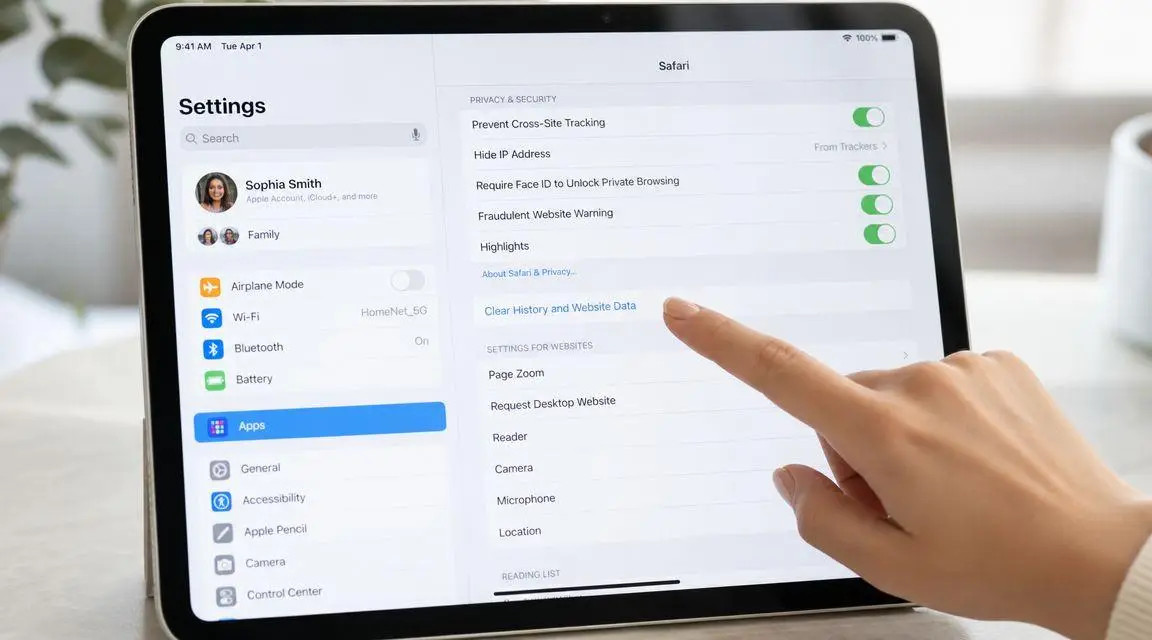
This removes the visible browsing record and associated website data from Safari on that device. It does not remove everything that can expose you. As noted earlier, saved credentials and other account-level traces can survive a browser clear. If the search involved legal strategy, deal activity, health, family matters, or a public-facing risk, treat Safari deletion as one layer of containment.
Safari also allows selective clearing by time range. The eSafety Commissioner’s iPhone and iPad history guide outlines options such as Last Hour, Today, Today and Yesterday, and All Time. Use the smallest range that solves the problem without advertising that you wiped everything.
A practical rule works well:
- Last Hour for a single sensitive session you want removed with minimal disruption.
- Today or Today and Yesterday if other browsing happened nearby and you need cover around the search.
- All Time if the iPad may be reviewed, reassigned, or examined by someone else.
Item-level deletion for surgical cleanup
Full deletion is not always smart. A complete wipe can draw attention on a shared or closely watched device, and it destroys benign history that may help you reconstruct normal activity later.
For tighter control, open Safari history and remove specific entries instead of clearing the entire record. Security.org’s iPad search history walkthrough describes the selective workflow and the same time-based clearing options inside Safari.
Use surgical deletion when the goal is to remove one revealing search while preserving the rest of the browsing pattern. That is usually the better choice for executives, public figures, and anyone managing scrutiny from colleagues, family members, staff, or media.
Chrome and other browsers
If the search happened in Chrome, clear it in Chrome. Do not assume Safari cleanup covers anything outside Safari.
Delete browsing history and cached session data inside the browser that was used. Then confirm whether the browser was signed in to an account. Chrome is the common failure point because a local deletion can leave the same query tied to a Google identity. If that applies, you will need account-level cleanup as well. This Google search removal resource is useful if the exposure extends beyond the iPad itself.
Use this browser check as a fast triage table:
| Browser | Typical risk | Deletion priority |
|---|---|---|
| Safari | Local history exposed through iPad settings and on-device review | Clear history and website data, or remove targeted entries |
| Chrome | Local history plus synced Google account activity | Clear in-app browsing data, then review linked account exposure |
| Other browsers | Compartmentalized browsing that gets overlooked during cleanup | Delete in-app history and verify sign-in status |
Under pressure, people clear the default browser and stop there. That is sloppy. Check every installed browser that could have handled the search, especially if links opened from email, messages, or another app.
Eliminating Traces from Google Services and System Search
Deleting browser history on the iPad handles the visible local record. It doesn’t necessarily touch the account that generated the search. That’s a distinction often overlooked.
If you searched while signed in to a Google Account, the record may also exist in Google’s My Activity controls. That means the browser can look clean while the account remains searchable from another device, another browser, or a future login. For reputation-sensitive users, that’s a serious failure point.
Google account history is a separate exposure
The fix is direct. Go to your Google account activity dashboard, review search and browsing-related entries, and delete the relevant activity from the account level, not just from the browser. If the search was especially sensitive, clear the broader activity set rather than removing one visible query and leaving the surrounding metadata intact.
For readers dealing with search-result exposure tied to Google’s ecosystem rather than just device history, this Google search removal resource addresses the larger issue.
Place this process at the center of your cleanup routine:
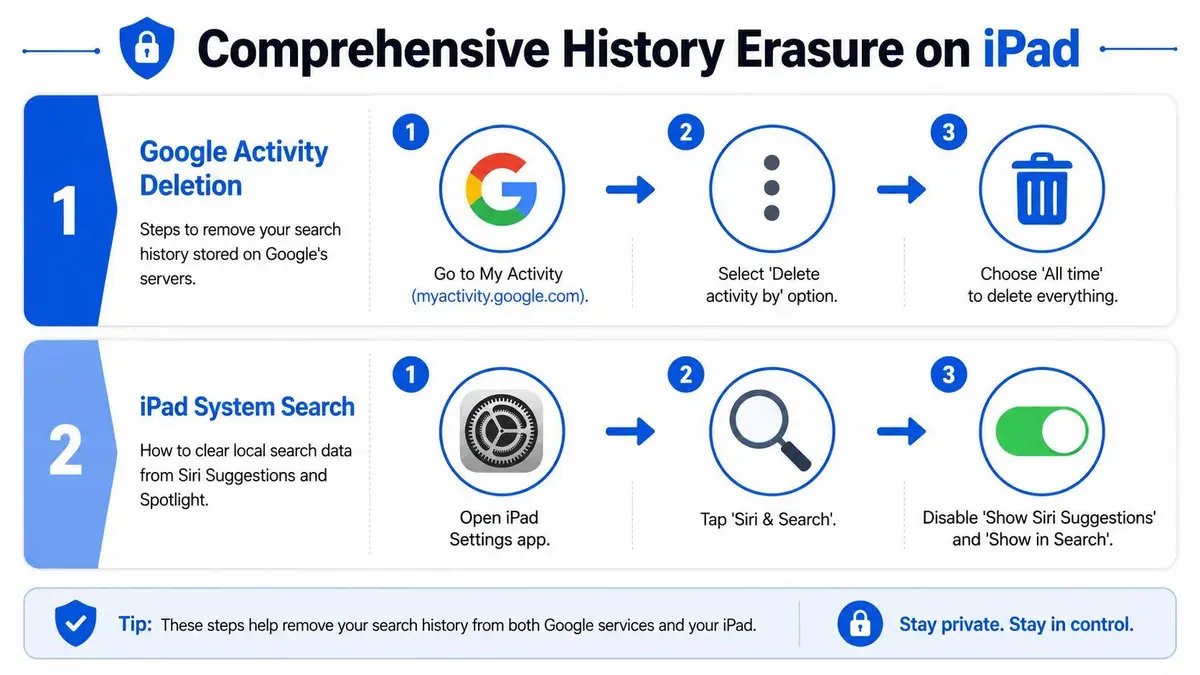
The practical lesson is simple. Browser deletion removes what the device displays. Account deletion removes what the service remembers. If you only do the first, you’re not finished.
A video walkthrough can help if you need a visual sequence before touching the account settings.
Siri, Spotlight, and system-level suggestion risk
Your iPad also learns from use patterns. Even when a browser history list is gone, the device can still surface related suggestions through system search behavior. That isn’t the same as browser history, but from a privacy perspective, it creates the same problem. A prior interest can reappear on screen at the wrong time.
The practical response is to audit Settings, then review Siri & Search behavior for apps and device-wide suggestion settings. If you don’t want prior search behavior influencing on-device prompts, disable suggestion features that expose prior activity in search contexts.
Use this checklist:
- Review app-specific search behavior: Some apps feed into system suggestions more aggressively than users expect.
- Turn off suggestions for sensitive workflows: If an app involves legal, financial, medical, or personal matters, don’t let the iPad promote it in shared-view scenarios.
- Separate personal from strategic research: Don’t use one signed-in environment for everything. Convenience is what creates leakage.
Browser history is the obvious record. Suggested results are the embarrassing one.
If your objective is strict confidentiality, your standard shouldn’t be “the history tab looks empty.” Your standard should be “nothing on this device or connected account hints at what I searched.”
Advanced Controls to Prevent History Reappearance
An empty history panel does not mean the research is gone. On an iPad used by an executive, founder, public figure, or adviser, the primary risk is reappearance through synced accounts, reused browser contexts, and careless sign-in habits. If a sensitive query can be reconstructed later, deletion was incomplete.
Use Safari profiles as containment, not convenience
Safari profiles matter because they let you separate activity before it spreads across the rest of your digital footprint. That is the right way to handle browsing tied to acquisitions, litigation, medical issues, family matters, crisis planning, or reputation monitoring.
Do not run all of that through one default profile.
A disciplined setup looks like this:
| Profile approach | What it contains | Best fit |
|---|---|---|
| Personal profile | Family, health, travel, private life | Principals and household members |
| Work profile | Board work, corporate research, vendor review | Executives and advisers |
| High-sensitivity profile | Litigation, investigations, crisis response | Short-term confidential matters |
Profiles give you cleaner boundaries and more precise cleanup. They also reduce the chance that a routine browser session exposes interests that belong in a different professional or personal context.
Control the account layer or history comes back
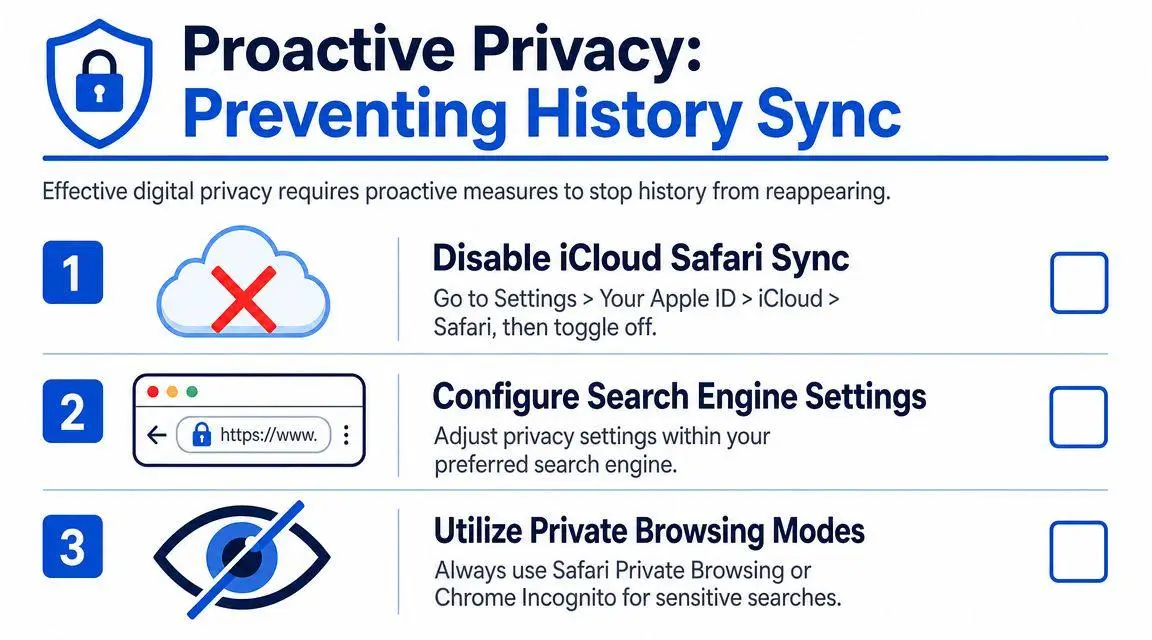
Deletion fails most often at the account level. If Safari is syncing through iCloud, or if Google, Chrome, YouTube, and other services are signed in under the same identity, new records start accumulating immediately. In some cases, older activity also remains visible from another device or service dashboard, which creates the false impression that the iPad “restored” deleted history.
Treat browser cleanup and account cleanup as one task.
Use these controls together:
- Keep high-risk research in a separate Safari profile: Clear that profile after the task is complete instead of wiping unrelated activity.
- Use Private Browsing for short, sensitive sessions: This limits local retention, especially when assistants, family members, or support staff may handle the device later.
- Limit account sign-ins during confidential work: Signed-in services make searches more durable and easier to correlate across devices.
- Review sync settings with intent: If the same Apple ID or Google account is active everywhere, expect traces to persist beyond the iPad.
- Reserve one browser context for reputation-sensitive matters: Mixed-use browsing creates a single timeline that can expose personal concern, strategic interest, and commercial intent at once.
Convenience causes the leak. One browser identity for everything feels efficient, but it creates a record that is easy to map back to you.
High-profile clients should set a stricter standard. The goal is not to make the history tab look empty. The goal is to prevent anyone, on this device or through a linked account, from inferring what you were researching in the first place.
Troubleshooting Failed or Blocked Deletion Attempts
When the deletion button is greyed out, don’t waste time restarting the iPad and hoping the problem disappears. This is usually a policy issue, not a glitch.
Apple Community guidance points to the most common cause. When Content & Privacy Restrictions are enabled in Screen Time, Safari’s Clear History and Website Data control can be greyed out, and the restriction has to be disabled with the Screen Time passcode before deletion will work, according to this Apple Discussions thread on blocked Safari history clearing.
What to check first
Go into Screen Time and review whether content restrictions are active. If they are, inspect the web-content settings. On a family-managed or institutionally managed iPad, someone may have enabled restrictions that prevent standard cleanup.
Use this quick sequence:
- Check Screen Time status: If restrictions are active, expect deletion controls to be limited.
- Confirm passcode authority: If you don’t control the Screen Time passcode, you don’t fully control deletion.
- Consider management policy: On employer-issued or school-managed iPads, device policy may override user intent.
If Safari won’t clear, assume a control layer is blocking you before you assume the browser is broken.
If the iPad belongs to an organization, treat that as a governance issue. A managed device isn’t private by default, even when it feels personal in day-to-day use. For sensitive research, use a device you control end to end.
Beyond Deletion Professional Digital Footprint Management
Clearing an iPad is necessary. It isn’t sufficient.
A search history trail is only one class of exposure. Public records, cached search results, data broker listings, old forum posts, social media references, leaked documents, indexed PDFs, and stale news coverage shape your digital footprint far more than one device does. If your name carries commercial value, legal sensitivity, or public interest, the bigger risk often sits outside the iPad entirely.
That is why manual deletion should be treated as tactical containment. It reduces immediate device-level exposure. It doesn’t control what search engines index, what third-party sites publish, or what harmful material keeps resurfacing elsewhere online.

Executives, founders, family offices, and public figures need a stricter standard. Remove the local trace. Audit the account trail. Then address the public-facing footprint that affects reputation, influence, and vulnerability. For a deeper executive-focused framework, review this strategic guide to professional digital footprint cleanup.
If you’re serious about privacy, stop thinking in terms of a single delete button. Think in layers. Device. Browser. Account. Sync. Public web. That’s the structure that holds up when scrutiny arrives.
If you need discreet help beyond device cleanup, ContentRemoval.com provides confidential assessments for executives, public figures, and high-net-worth individuals who need harmful search visibility, exposed personal information, and reputation risks addressed decisively.
Frequently asked questions
Why is Clear History and Website Data greyed out on my iPad?
Almost always because Content and Privacy Restrictions are enabled in Screen Time. The restriction has to be turned off with the Screen Time passcode before Safari will clear. On an employer- or school-managed iPad, device policy may block deletion entirely, and the article recommends using a device you fully control for sensitive research.
Does clearing Safari history delete my Google search history too?
No. Safari clearing removes the local record on the device. If you searched while signed in to a Google account, the query can still appear in Google’s My Activity from any other signed-in device or browser. Delete it at the account level as well, and clear Chrome separately if that is where the search happened.
How do I delete just one search on iPad without clearing everything?
Open Safari’s history and remove the specific entry, or use the smallest time range such as Last Hour that covers the session. The article recommends this surgical approach on shared or closely watched devices, since a full wipe can draw attention and destroys benign history you may want later.